Link your bank so CentSight can see your real cash movements alongside your QuickBooks data. CentSight connects through Plaid, and you sign in on your bank's own page, so your bank login is never shared with CentSight.
Before you start
- This step is optional, but it is what gives you real-time cash visibility.
- You need your online banking login. You do not need a phone number to connect.
Link your bank
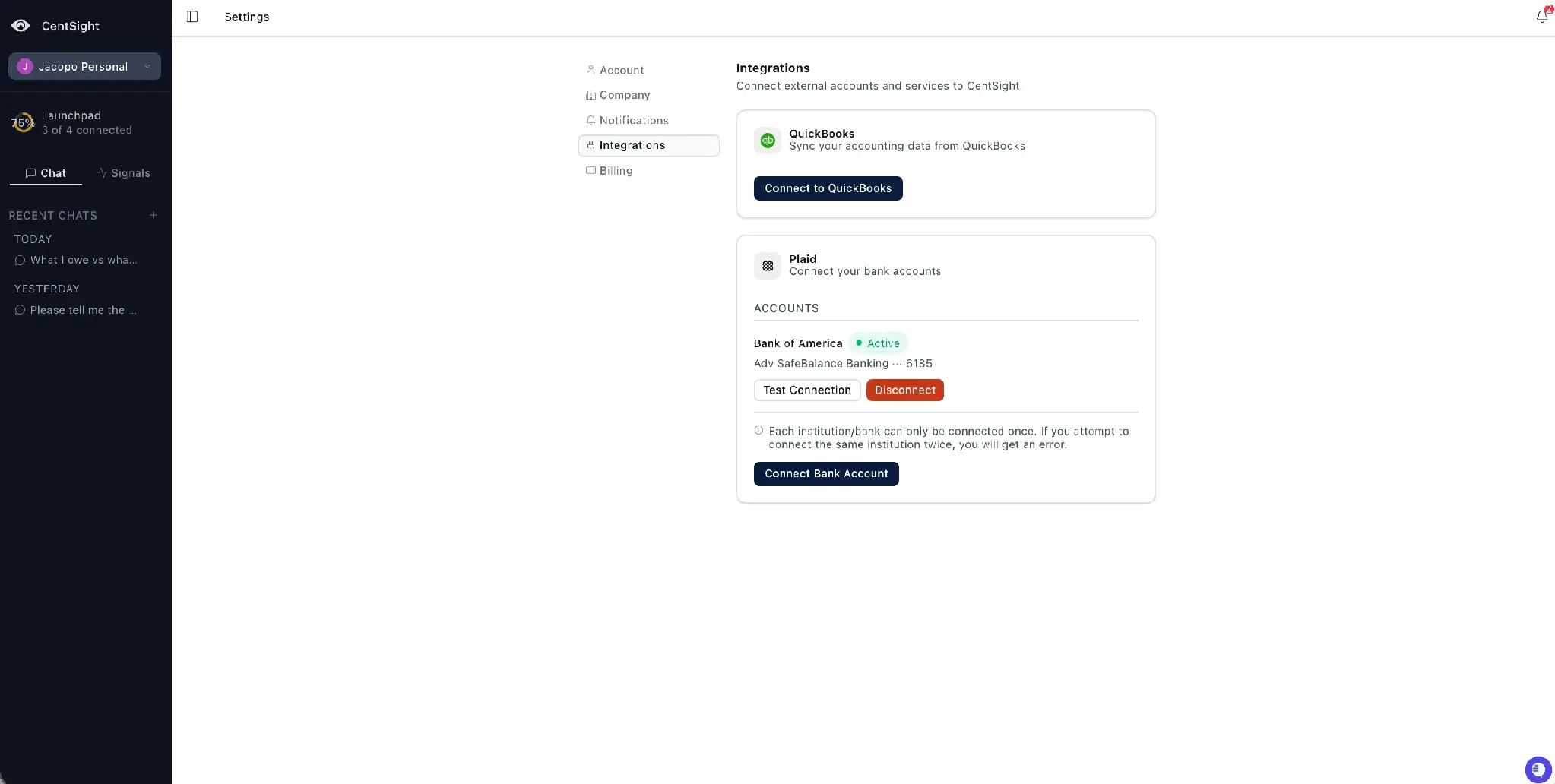
- Open Settings, then Integrations, and select Connect Bank Account under Plaid.
- Continue past the short Plaid introduction.
- Search for and select your bank.
- Sign in on your bank's own page. You may be asked for a verification code.
- Choose which accounts to connect. If your bank holds both business and personal accounts, pick only the ones you want CentSight to see, then approve.
CentSight starts reading transactions from the accounts you chose.
Connect more than one bank
You can connect as many banks as you like. Add them one bank at a time by selecting Connect Bank Account again. Each bank can only be connected once.
What happens next
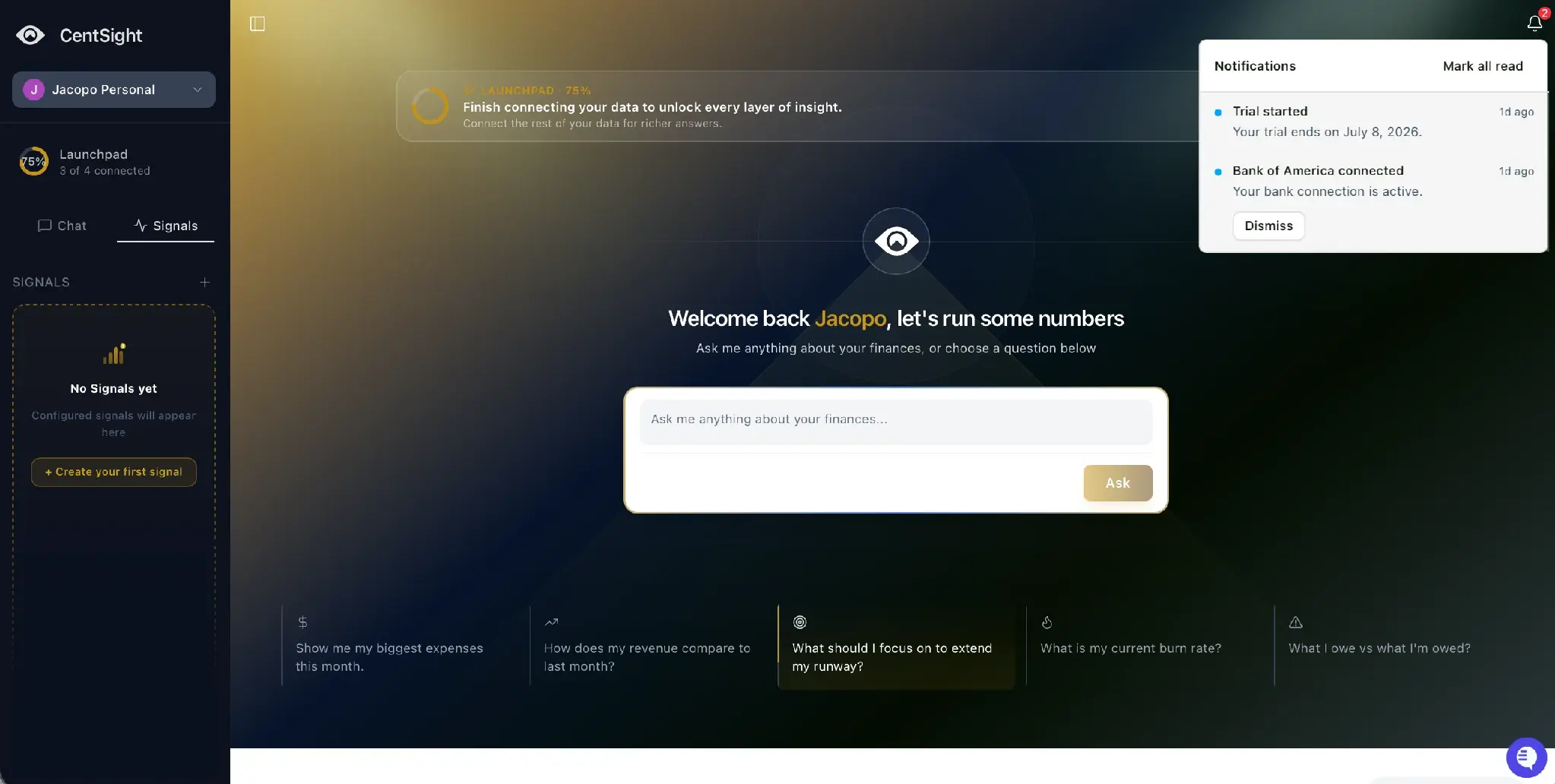
CentSight confirms once the bank is linked, then uses it to show your cash position, daily burn, and to answer transaction-level questions, all in real time.
Good to know
- CentSight never sees your bank login. You sign in on your bank's own page through Plaid, and your credentials are not shared with CentSight.
- Read-only. CentSight reads your transactions and cannot move money.
- Disconnect any bank whenever you want, from Settings › Integrations.