Once QuickBooks or your bank is connected, CentSight is ready to answer questions about your business. Here is how to get value in the first few minutes.
Ask your first question
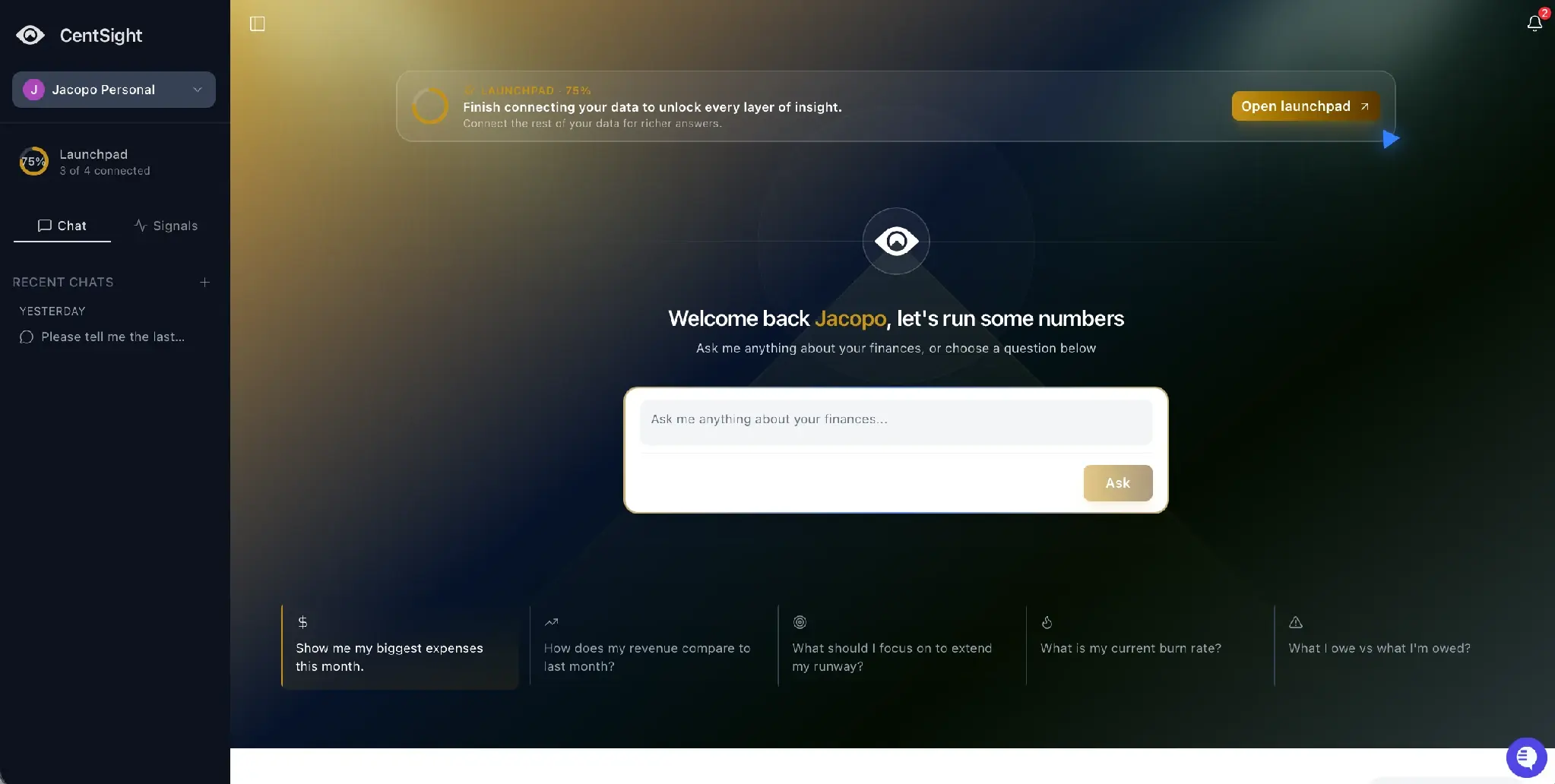
From the home screen, type a question into the box, or pick one of the starter questions:
- Show me my biggest expenses this month
- How does my revenue compare to last month?
- What should I focus on to extend my runway?
- What is my current burn rate?
- What I owe vs. what I'm owed
CentSight shows its thinking, then answers in plain English. The Conversation Details panel on the right shows which data sources and reports it used.
Read your dashboard
Your CentSight Panel shows your key numbers as tiles: Cash Balance, Runway, Monthly Burn, and more. Each tile has a one-click follow-up question, like "What expenses can I reduce?". If a tile shows "No data yet," it just needs a sync (see Why your dashboard numbers look out of date).
Set up a Signal (optional)
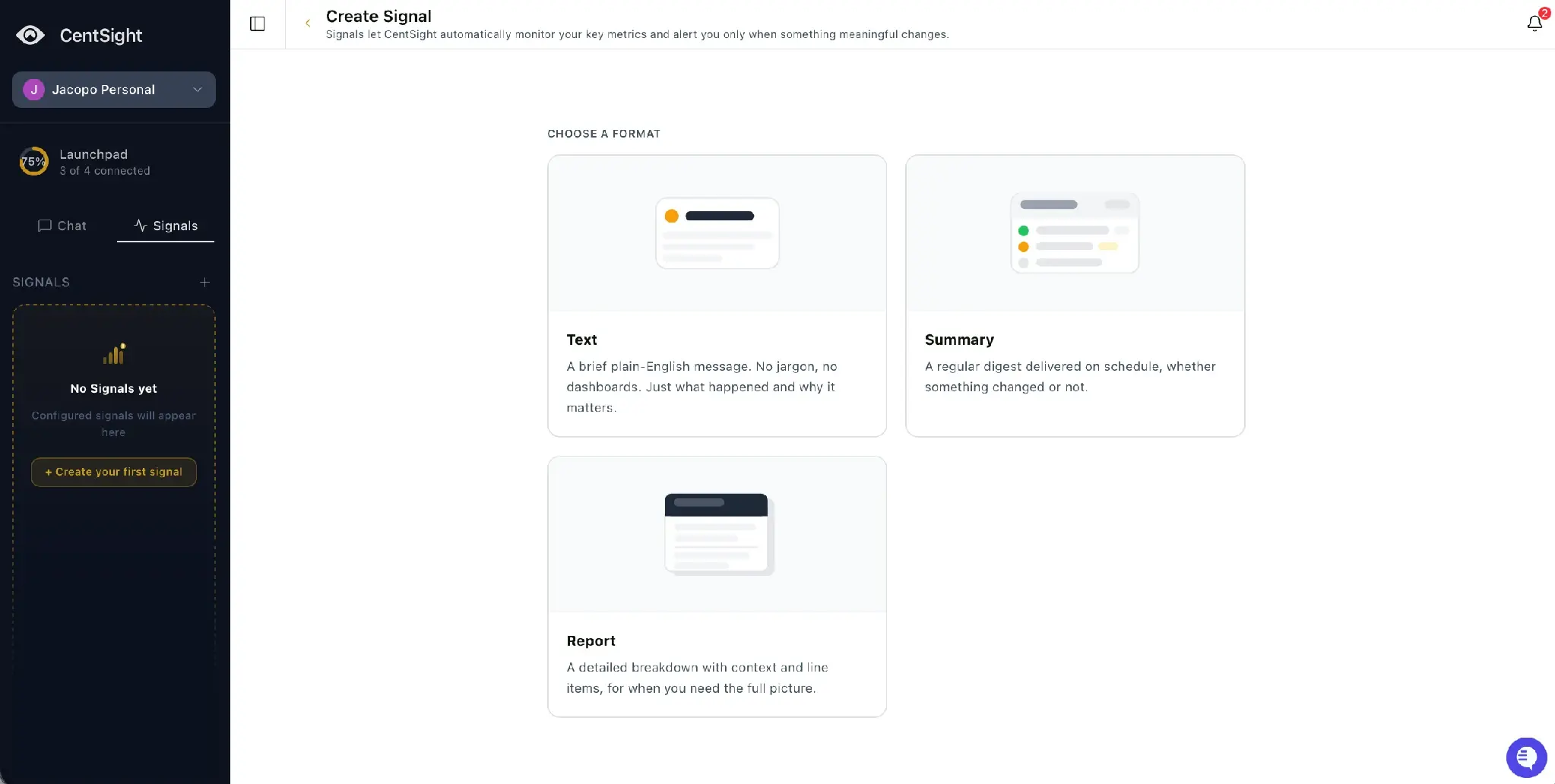
Signals let CentSight watch a metric and tell you when something meaningful changes, so you do not have to keep checking. Open Signals, then Create your first signal, and choose a format:
- Text. A short plain-English alert.
- Summary. A regular digest on a schedule.
- Report. A detailed breakdown when you need the full picture.
Name the signal, describe what it should watch (for example, "Every time my runway drops below 10k, ping me"), set a schedule, and choose when to be notified.
Finish your setup
The Launchpad in the sidebar tracks your setup progress. Connecting more of your data unlocks richer answers.