Connections can expire or lose access over time. When that happens, CentSight stops getting new data until you reconnect. It takes a few seconds, and none of your history is lost.
How you will know
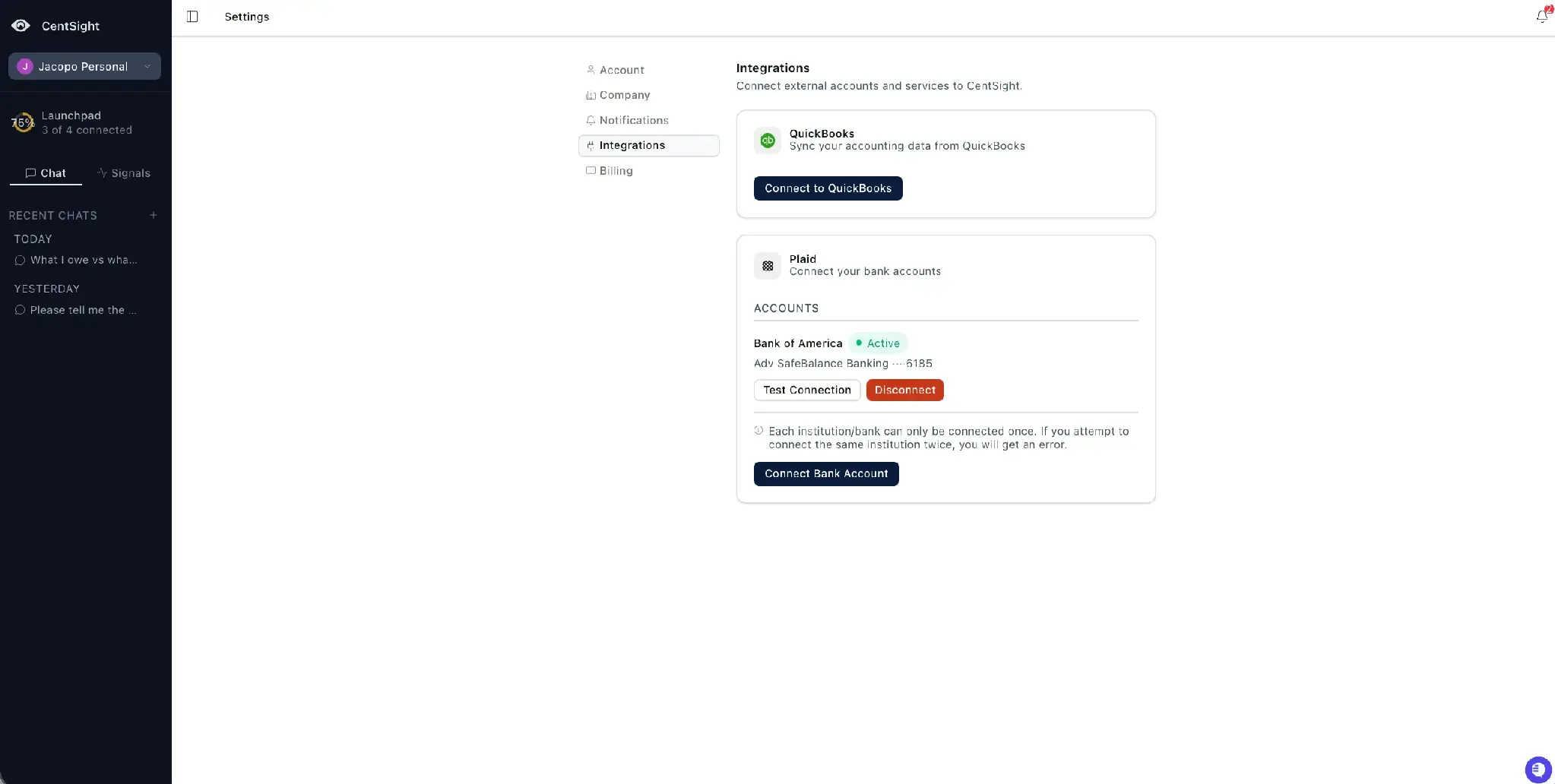
You will see a red Needs Reconnection (or Disconnected) badge on Settings › Integrations, a last-synced time that has stopped moving, and a notification. CentSight does not retry on its own, so syncing stays stopped until you reconnect.
Reconnect
- Go to Settings › Integrations.
- Find the account with the badge.
- For a bank, select Fix Connection. For QuickBooks, select Connect again.
- Sign in to finish, the same way you did the first time.
What happens to your data
All your historical data is preserved. Reconnecting restores access and resumes syncing. Nothing is wiped, and nothing is duplicated.
Badge still there?
If the Needs Reconnection badge stays after reconnecting, get in touch and we will help.